

Which Mac permissions Nico asks for, and why
Nico asks for the microphone and Accessibility during setup, and for everything else only when a task first needs it. Here is what each permission is for and what happens if you say no.
By the Nico team · Last updated
During setup, Nico asks for two permissions: the microphone, so she can hear you, and Accessibility, so the talk key works in any app. On macOS 15 she also asks for Speech Recognition, to turn your speech into text on your Mac. Everything else is asked for the first time a task needs it. You can skip any of them and turn them on later; connecting an AI account is the only setup step you can’t skip.
Each permission
| Permission | What it’s for | When Nico asks | If you say no |
|---|---|---|---|
| Microphone | Hearing you, while you hold the talk key or in a hands-free voice conversation you start from her menu | During setup, or the first time you speak | You can still type to her: press ⌃⌥T |
| Speech Recognition | macOS 15 only. Turning your speech into text with macOS speech recognition: Free uses it for everything you say, Plus for live captions while you talk. macOS 26 and later don’t ask for it | On macOS 15, the first time Nico sets up speech recognition on your Mac, usually during setup | With Free, you type to her instead. With Plus, she still hears you, without live captions |
| Accessibility | Making the talk key work in any app, working in other apps’ windows and controls, and reading other apps’ notification banners | During setup, for the talk key | The talk key is off and you type instead, and she can’t work in other apps |
| Screen Recording (listed as Screen & System Audio Recording) | Looking at your screen when you ask about it, and taking screenshots during a task | The first time she needs to see your screen | She can’t see your screen. After you turn it on, quit and reopen Nico |
| Automation | Saving to Notes, working in Mail, sending iMessages and controlling apps with AppleScript. macOS asks separately for each app | The first time a task uses that app | That step isn’t done. You can turn it on in System Settings › Privacy & Security › Automation |
| Calendars | Viewing and changing your calendar | The first time a task needs your calendar | She can’t view or change your calendar |
| Reminders | Adding and completing reminders | The first time a task needs your reminders | She can’t add or complete reminders |
| Contacts | Looking up a recipient’s address before sending. Read-only | The first time a task needs your contacts | She can’t look up addresses for you |
| Files and Folders | Working with files in your Desktop, Documents and Downloads folders | macOS asks the first time a task opens one of them while you’re at your Mac | She can’t use files in that folder |
Nico doesn’t ask for Input Monitoring or Full Disk Access. If you’ve already given her Full Disk Access, she can also read your notification history.
When a task needs a permission you haven’t given
- You’re at your Mac. For Calendars, Reminders, Contacts and Automation, macOS shows its usual prompt, and the task carries on once you answer.
- The permission can’t be asked for with a prompt. Accessibility and Screen Recording have to be turned on in System Settings, so the task pauses with a card: “Turn on Screen Recording for Nico in System Settings. The task continues once it’s on. After turning it on, quit and reopen Nico.” You can open System Settings from the card or skip the step.
- You’re away. The step is skipped and noted, so you can deal with it when you’re back.
- You say no. That step stays undone. Nico doesn’t try to get the same information another way, and finishes the rest of the task if it still makes sense.
- An administrator or Screen Time blocks it. The step is reported as not done.
Where to check and change permissions
- In Nico: open Settings › General and click View Details… next to Permissions and Services. It lists each permission with what it’s for and its status, and a button next to the ones you can turn on from there.
- In macOS: System Settings › Privacy & Security. Screen Recording is listed as Screen & System Audio Recording, and on macOS 27, Accessibility is listed as Device Control and Data Access. Apple explains each one: Accessibility, Screen & System Audio Recording and Microphone.
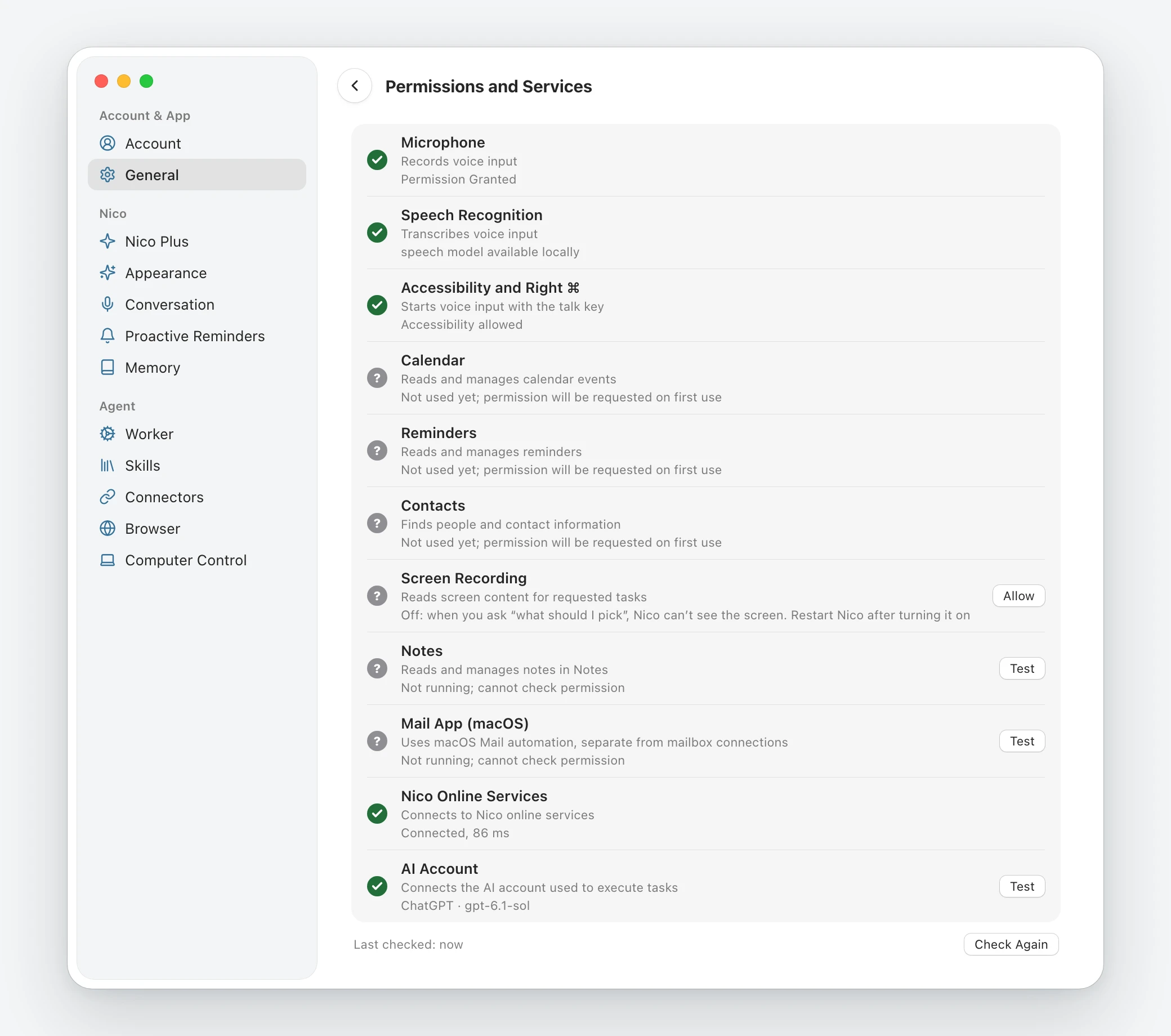
Removing a permission later only turns off what it’s for. Your chats, memories and files aren’t affected.
If a permission is on but Nico still can’t use it
- Screen Recording was just turned on. macOS applies it only after Nico restarts. Quit Nico from the menu bar and open her again.
- Nico isn’t in the list. Click the add button (+) below the list, choose Nico in your Applications folder, and turn the switch on.
- The switch is on, but it stopped working after an update. macOS sometimes keeps a permission tied to the old copy of an app. Turn the switch off and on again, or select Nico, remove it with the remove button (−), add it back with +, and reopen Nico.
- The switch is greyed out. A profile from your organization or Screen Time manages it. Ask whoever manages your Mac.
Your browser
Working in your own Chrome doesn’t use a macOS permission. It uses the Nico extension, which you install from the Chrome Web Store and can turn off at any time. See Browser extension.